4. Text Editor
The Text Editor menu (pencil icon on the snippet bar) is the layout toolkit. These snippets do not draw monsters or class charts. They decide where text sits: pages, columns, numbers, footers, contents, and a few extras.
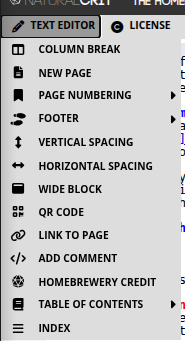
How to use any of them
- Click in the brew where the control should go.
- Open Text Editor and pick the snippet.
- Homebrewery pastes the syntax at the cursor. Change placeholder words; leave the
\page,{{ }}, and class names unless you know you need a different look.
\pagebreak and \columnbreak work as aliases of \page and \column if you are used to GM Binder.
4.1 Column Break
Menu: Text Editor → Column Break
Inserts: \column
The default PHB page is two columns. Text fills the left column, then spills into the right. \column does not create extra columns. It forces a break at that point in the existing two-column flow.
## The Counting House

Clerks shout over the clatter of coin.

\column

## The Vault Door

Two iron bars and a sleeping mastiff.
Use it when the next heading should start at the top of the right column, not halfway down the left. If text peeks off the right edge of the page, a third CSS column is overflowing: add New Page, shorten the copy, or move a tall block. Do not try to invent a third on-page column.
4.2 New Page
Menu: Text Editor → New Page
Inserts: \page
Homebrewery does not paginate for you. A page grows until you tell it to stop. If text spills off the parchment, the preview is warning you—not failing.
\page is a contextual break: Homebrewery only honors it alone, at the start of a line. That rule keeps \page inside sentences or code examples from accidentally splitting your brew.
The cultists scatter into the alleys.

\page

## Aftermath
When dawn reaches the docks, the ledger is gone.
Rules
- Put
\pageon its own line, with nothing before it on that line. - Optional curly modifiers style the next page, for example
\page{wide}or a class you defined in the Style tab. - A counter can appear beside each
\pageline in the editor (counting from page 2). That number is a map of physical pages. It is not the printed folio unless you also add a page-number snippet.
Insert a break when a heading is stranded at the bottom of a column, a table is clipped, or a chapter should start on a fresh sheet. If content is only slightly over, shorten a paragraph before you add another page.
4.3 Page Numbering
Menu: Text Editor → Page Numbering
\page only starts a new sheet. The PHB-style digit in the bottom corner is a separate snippet. Place it on each page that should show a folio, usually just after the \page that begins that sheet (and on page 1, near the top of the brew).
Page Number (by hand)
Inserts: {{pageNumber 1}}
Type any label you want: 1, iv, A-3. Homebrewery prints that text as the folio and does not update it when you insert pages. Use this for a one-pager, a preface in Roman numerals, or a spread that must say a fixed string.
{{pageNumber iv}}
Auto-incrementing Page Number
Inserts: {{pageNumber,auto}}
Homebrewery counts physical pages and paints the digit on the outer corner (odd pages right, even pages left in the PHB theme). Put this snippet on every content page that should show a number.
{{pageNumber,auto}}
Variable Auto Page Number
Inserts: {{pageNumber $[HB_pageNumber]}}
$[HB_pageNumber] is the built-in counter. It supports simple math and reassignment, so you can print a custom scheme in body text as well as in the footer. For everyday work this behaves like auto numbering with more room to grow.
{{pageNumber $[HB_pageNumber]}}
Skip Page Number Increment this Page
Inserts: {{skipCounting}}
Put this on covers, inside covers, and credits sheets. That page prints without advancing the published count (and typically without a folio). The table of contents generator also ignores skipped pages when it maps heading → page number.
{{skipCounting}}

# Saltmarsh Gazetteer
Restart Numbering
Inserts: {{resetCounting}}
Put this on the first real content page so that sheet becomes printed 1, which is what a contents list should match. Combine it with an auto (or variable) page-number snippet on the same page.
{{skipCounting}}

# Saltmarsh Gazetteer

\page

{{resetCounting}}
{{pageNumber,auto}}
Practical pattern: skip decorative sheets, restart on the first numbered page, prefer auto or $[HB_pageNumber] on every content page, and never type a digit on the \page line itself.
4.4 Footer
Menu: Text Editor → Footer
Inserts: {{footnote PART 1 | SECTION NAME}}
The footer is the small running title next to the page number (chapter name, part name, or adventure title). Replace the placeholder. Keep it short; long footers collide with the digit.
Footer from H1 through Footer from H6 scan upward from the cursor for the most recent heading of that level and paste that heading’s text into the footnote. Place the cursor in the chapter you are numbering, then pick Footer from H1 (or H2) instead of typing the name twice.
{{pageNumber,auto}}
{{footnote THE DOCKS AT NIGHT}}
Add a footer per chapter (or per page if the running title changes), not after every paragraph. Cover-page snippets already flip left/right footer sides for facing pages; after a cover, check that page 1 of the body sits on the recto if you care about print imposition.
4.5 Vertical Spacing
Menu: Text Editor → Vertical Spacing
Inserts: a line of four colons (::::)
Each colon is a small vertical gap. The snippet drops several at once so you can nudge a heading, note, or illustration down the column without empty paragraphs. Delete colons to tighten; add more (or extra : lines) to push content toward a natural column end when a hard \column would fight the PDF engine.
## The Vault Door

::::

Two iron bars and a sleeping mastiff.
4.6 Horizontal Spacing
Menu: Text Editor → Horizontal Spacing
Inserts: {{width:100px}} as an inline spacer
Use this between words, icons, or short phrases when you need a fixed gap that a normal space will not give you. Change 100px to 1cm, 2em, or another length. This is not a column tool; for layout across the page, use Column Break or Wide Block.
Name {{width:100px}} Signature _______________
4.7 Wide Block
Menu: Text Editor → Wide Block
Inserts: a {{wide ... }} wrapper
Content inside spans both columns: chapter intros, large tables, and anything that looks crushed in a single column. After a wide block, flow returns to column one. Add \column if you need to rebalance the text that follows.
{{wide
### Downtime in Saltmarsh

While the party recovers, each character may pursue one downtime activity from the table below.
}}
CSS columns can sit oddly around a wide strip. If the PDF drops a wide section to the bottom of the page, avoid a hard \column immediately above {{wide and prefer Chrome for export.
4.8 QR Code
Menu: Text Editor → QR Code
Inserts: an image whose URL is a generated QR code
The snippet points at a QR service and encodes your brew’s Share link when the brew is saved. If the brew is still on /new (unsaved), it falls back to the Homebrewery home URL. Change the data= query to any URL: a battle map, a Patreon page, or a handout.
 {width:100px;mix-blend-mode:multiply}
mix-blend-mode:multiply lets the code sit on parchment without a white box. Save the brew before you rely on the Share URL inside the code.
4.9 Link to page
Menu: Text Editor → Link to page
Inserts: [Click here](#p3) to go to page 3
Each preview page has an id p1, p2, p3, … matching physical sheets (the same count as the editor’s \page map), not the printed folio after skip/restart. Change the number to the sheet you want. In the live brew and in many PDFs, the link jumps to that page.
See the harbor map on [page 3](#p3).
Use this for “continued on page …” notes. For a contents list with dotted leaders and mapped numbers, use Table of Contents instead of hand-writing every #p link.
4.10 Add Comment
Menu: Text Editor → Add Comment
Shortcut: Ctrl+/ (or Cmd+/) wraps a selection
Comments are notes for you. They do not appear in the preview, the share view, or the PDF. Use them for balance reminders, art to-dos, or “do not print this sidebar yet.”
<!-- TODO: replace this rumor table after playtest. -->
Do not put secrets you would not want in the brew source; comments still live in the file if someone opens the editor.
4.11 Homebrewery Credit
Menu: Text Editor → Homebrewery Credit
Inserts: a {{homebreweryCredits}} badge with the Homebrewery name and link
Place it on a credits or back-cover page if you want to acknowledge the tool. Replace nothing required; you may move it with the usual position styles later. This is courtesy, not a license for the game content you wrote.
{{homebreweryCredits
Made With

{{homebreweryIcon}}

The Homebrewery
[Homebrewery.Naturalcrit.com](https://homebrewery.naturalcrit.com)
}}
4.12 Table of Contents
Menu: Text Editor → Table of Contents
Inserts: a generated {{toc,wide}} list from your headings
The generator reads H1–H3 by default from the preview, maps each heading to a page using skip/restart, and pastes Markdown links with PHB-style leaders. Insert it after your headings exist, usually on its own early page. If you add chapters later, run the snippet again (or replace the old {{toc,wide}} block). It will not update live by itself.
{{toc,wide
# Contents

- ### [{{ The Docks at Night}}{{ 1}}](#p3)
 - #### [{{ The Counting House}}{{ 2}}](#p4)
}}
Include in ToC up to H3 / H4 / H5 / H6 wrap a region in {{tocDepthH4 ... }} (and similar) so headings in that region go deeper than the default H3. After you add a depth wrapper, regenerate the contents snippet.
You can also mark blocks so their headings are skipped or forced in: CSS --TOC:exclude or --TOC:include on a {{block}}. Monster titles and note headings are often excluded so they do not clutter the list. Prefer real # / ## / ### lines in the body; bold-only titles will not appear.
The list is wide and can flow across the two columns. You do not need a manual \column inside the ToC.
4.13 Index
Menu: Text Editor → Index
Inserts: a sample {{index,wide,columns:5;}} with hanging entries
Unlike the ToC, the index is not generated from headings. You maintain the entries: headwords, subentries, and page numbers. Change columns:5 if you want fewer or more columns. Alphabetize as you add terms. Update page numbers when you insert \page breaks, or wait until layout is frozen and pass through once.
{{index,wide,columns:3;
##### Index
- Harbor
 - docks, 1
 - vault door, 2
- Ledger, 3
}}
Indent subentries with two spaces after the -. Use an en-dash for ranges (26-27). Place the index at the back of the brew.